AI Generated Food Images
Turn AI-made food images into practical web assets for menus, recipe cards, food blogs, social posts, and app previews.
Best For
Publishing Workflow
Start with generated food art
Use AI-made dishes, drinks, or plated meals as source material for visual content.
Choose the right frame
Keep landscape images for editorial layouts or use square framing for cards and thumbnails.
Clean when needed
Remove plain backgrounds for icons, or keep full scenes when they work better as food photography.
Export compact WebP
Save a lighter asset that is easier to publish across web pages and app previews.
AI Food Image Samples
These AI food samples show how generated food art can become a consistent publishing set instead of staying as raw output.
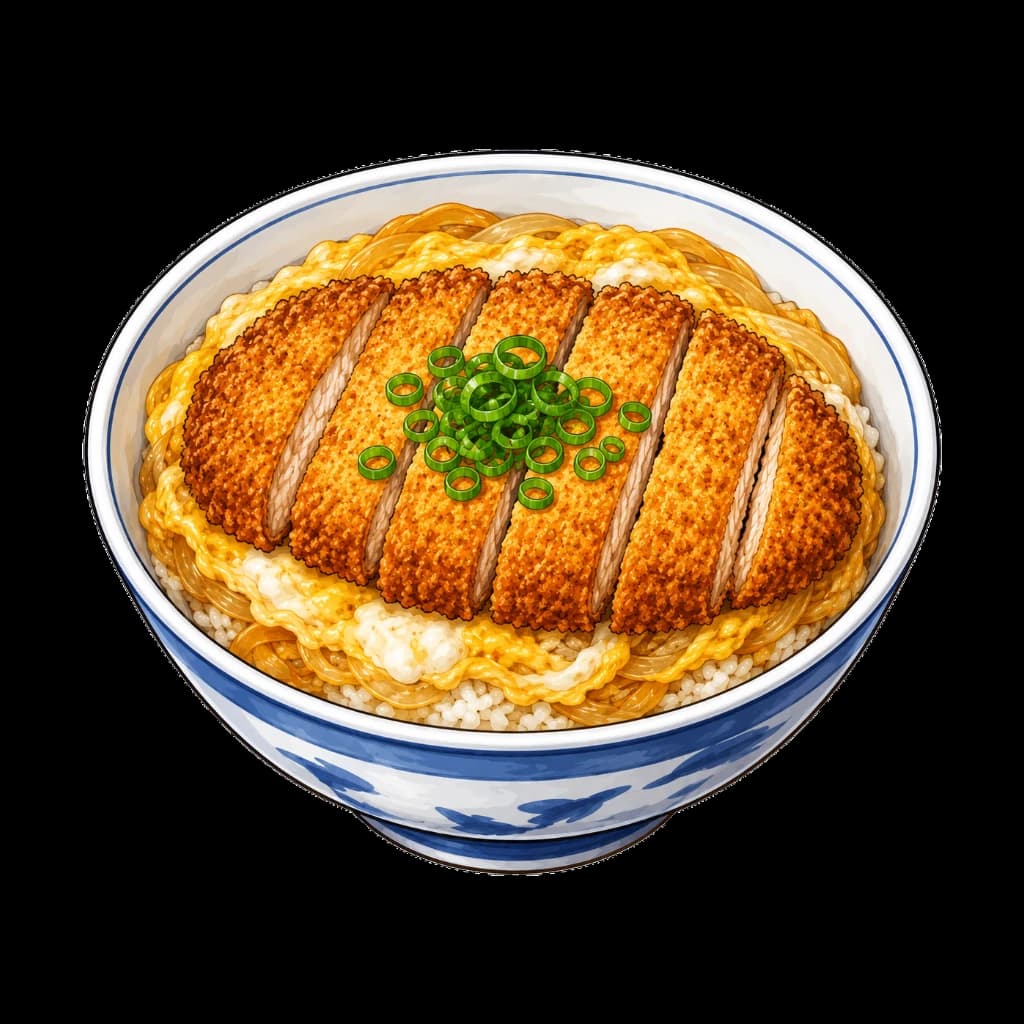
Katsudon
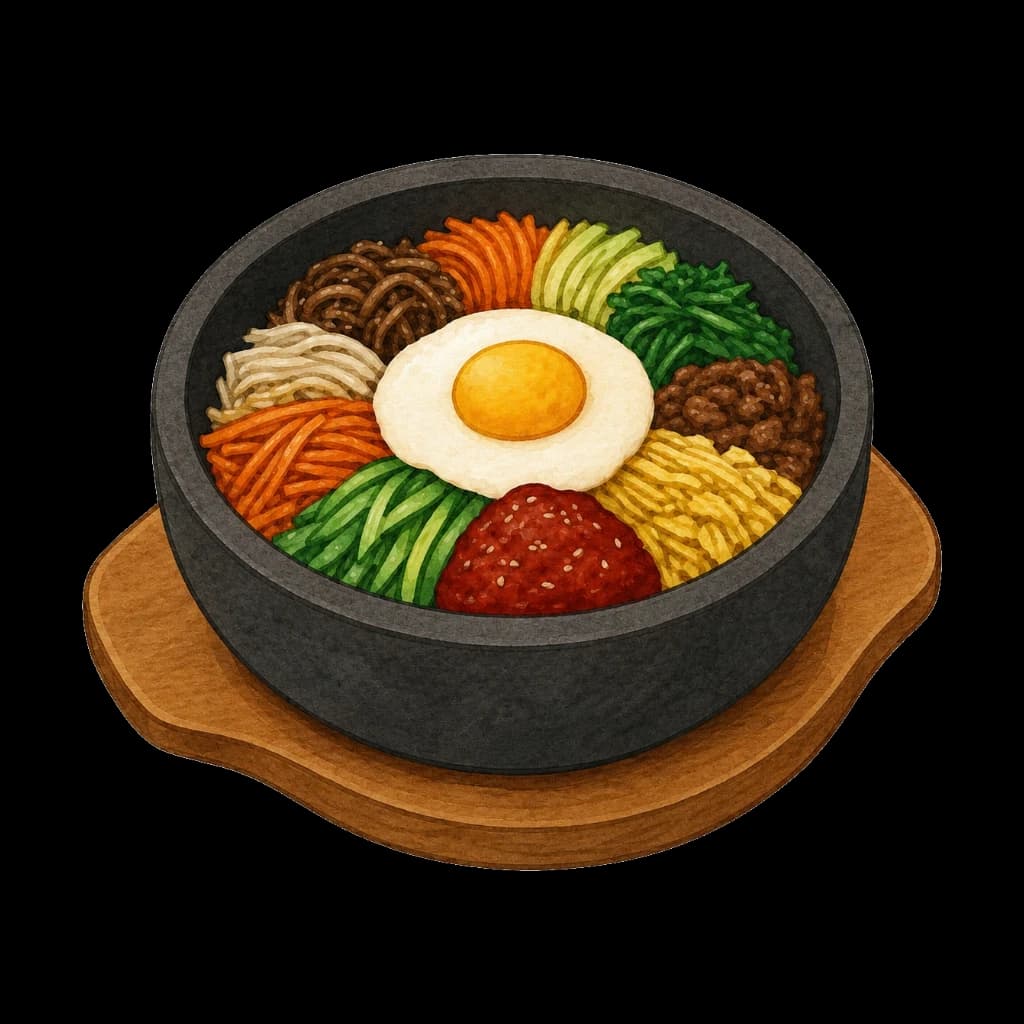
Bibimbap
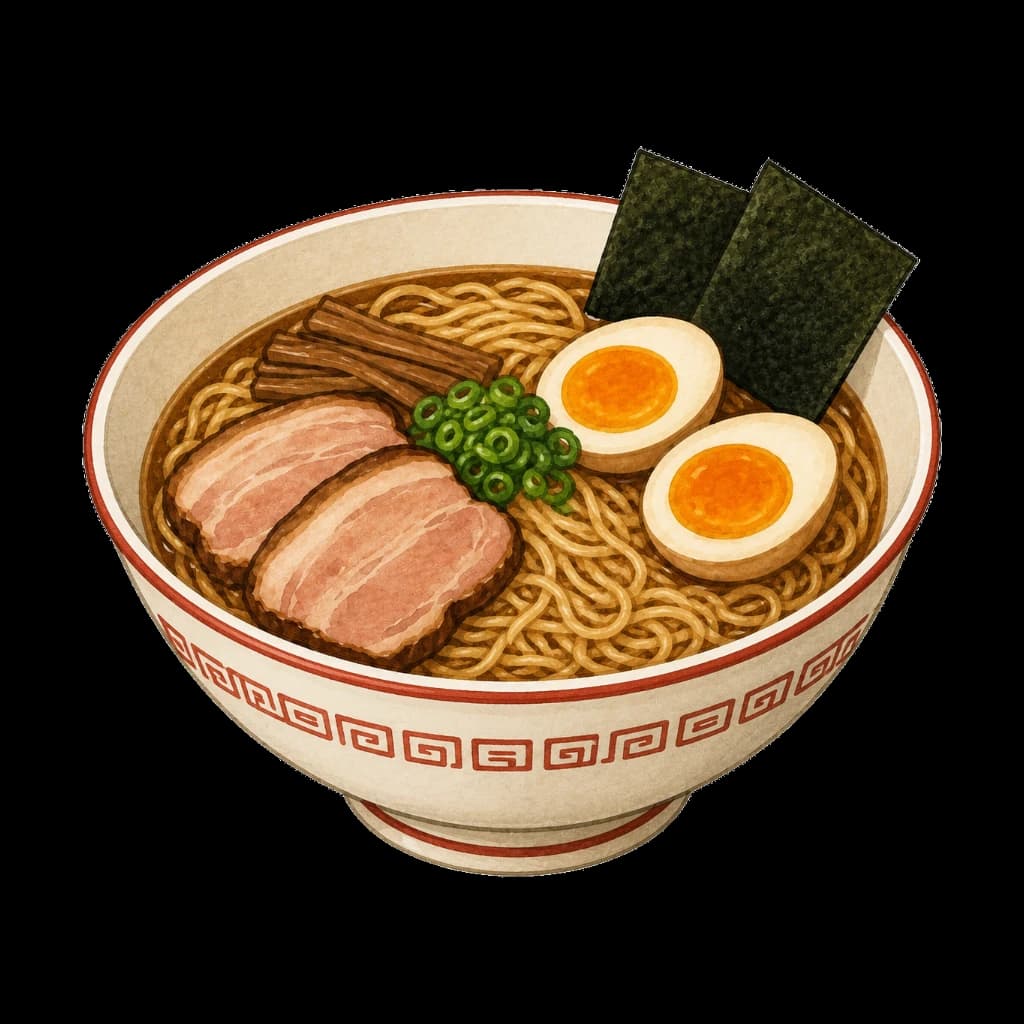
Ramen
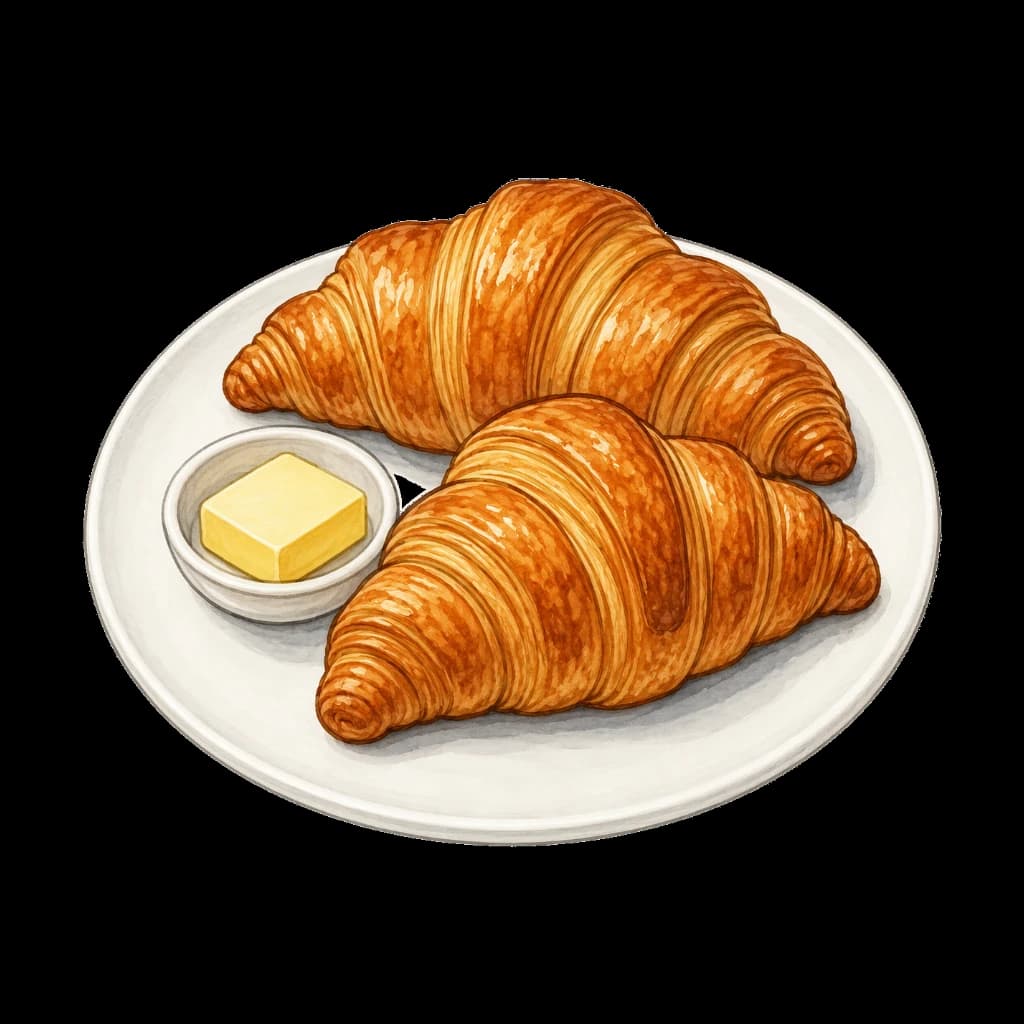
Croissant
Use generated images responsibly: review visual artifacts, recipe accuracy, and brand fit before publishing.
Output Checks
Useful crop
The dish should stay clear at card, thumbnail, and detail-page sizes.
Clean artifacts
Check strange text, utensils, hands, shadows, and repeated food textures before publishing.
Fast delivery
Export WebP to keep food-heavy pages lighter on mobile connections.
AI food image review points
Visual artifacts
Generated food can include repeated textures, strange utensils, fake text, or impossible details. Review the image before treating it as publishable.
Recipe accuracy
A generated dish may look appealing but still be inaccurate. Check ingredients and presentation if the image represents a real menu item.
Crop before compressing
Decide whether the image is a square card, menu thumbnail, or full-width visual before exporting WebP. Compression should be the final step.
For making AI food images usable in real pages
AI-generated food images are useful starting points, but they usually need practical cleanup before publishing. ByteCut helps resize them, remove unwanted backgrounds, and export lighter WebP files for menus, recipe cards, blog posts, landing pages, and app previews.
Why this workflow helps
- Food samples show how AI-made dishes can be prepared for real web layouts instead of staying as raw generation output.
- Square and landscape framing helps the same dish work in cards, thumbnails, and detail pages.
- WebP export reduces delivery weight while keeping the image useful for visual food content.
- Browser-side processing keeps test images and drafts on your device.
Turning a generated dish into something you can publish
Generated food images arrive at the wrong size
Most image models output a large square, and almost nothing on a real site wants a large square. A menu row wants a small thumbnail, a recipe card wants a wide crop, a social post wants its own ratio. Shipping the raw generation means every visitor downloads several times the pixels their screen will use. Deciding the final placement first, then exporting to it, removes more page weight than any compression setting will.
Look for the tells before you commit
Generated dishes carry recognisable errors: cutlery with the wrong number of tines, a fork merging into the plate rim, text on packaging that is not real writing, garnish that does not match the cuisine, steam that floats away from the food. These are easy to miss while you are judging the overall look and impossible to miss once a customer is staring at the menu. Inspect at full size before doing any cleanup work.
Cutting out a generated dish is its own problem
Models like to render food on a pale plate against a pale surface with soft studio lighting, which is exactly the low-contrast situation that makes background removal hard. The plate edge blends into the backdrop, and cleanup either eats the rim or leaves a halo of background attached. If the generation is destined to become a transparent asset, it is worth generating it against a clearly contrasting background in the first place.
Be honest about what the image represents
A generated picture of a dish is not a photograph of the dish you serve. Using one as a straight product image on a menu or a store listing can mislead customers and, on some marketplaces, breaks platform rules outright. Generated imagery works well for blog headers, category tiles, decorative backgrounds, and placeholders during design. For the actual item a customer is ordering, a real photograph is the safer choice.
AI food image FAQ
Does ByteCut generate food images?
No. ByteCut focuses on preparing images you already have: cleanup, resizing, transparency review, and WebP export.
What can I use AI-generated food images for?
They can be prepared for restaurant menu previews, recipe cards, food blogs, landing pages, social posts, and app mockups.
Should every AI food image have its background removed?
Not always. Some images work better as full rectangular photos, while menu icons and stickers often benefit from transparent cutouts.
What should I check before publishing?
Review plate edges, hands, utensils, text artifacts, shadows, and unrealistic details before using generated food images publicly.
All processing runs locally in your browser. No files are uploaded.
Prepare a Food ImageRelated Use Cases
Image Asset Cleanup
Turn source images into production-ready assets with cleanup, size normalization, and WebP export.
Remove Background
Create transparent cutouts that are ready for menus, app assets, listings, and UI libraries.
Convert to WebP
Reduce file size while maintaining visual quality. Ideal for faster websites and better SEO.
Resize Icons
Normalize image dimensions for app icons, menu thumbnails, and reusable design assets.
Food Menu Icons
Uniform food icons for restaurant menus and delivery apps.
Sticker Assets
Transparent sticker images for messaging apps.
Character Assets
Transparent character art for stickers, avatars, game prototypes, and app UI.